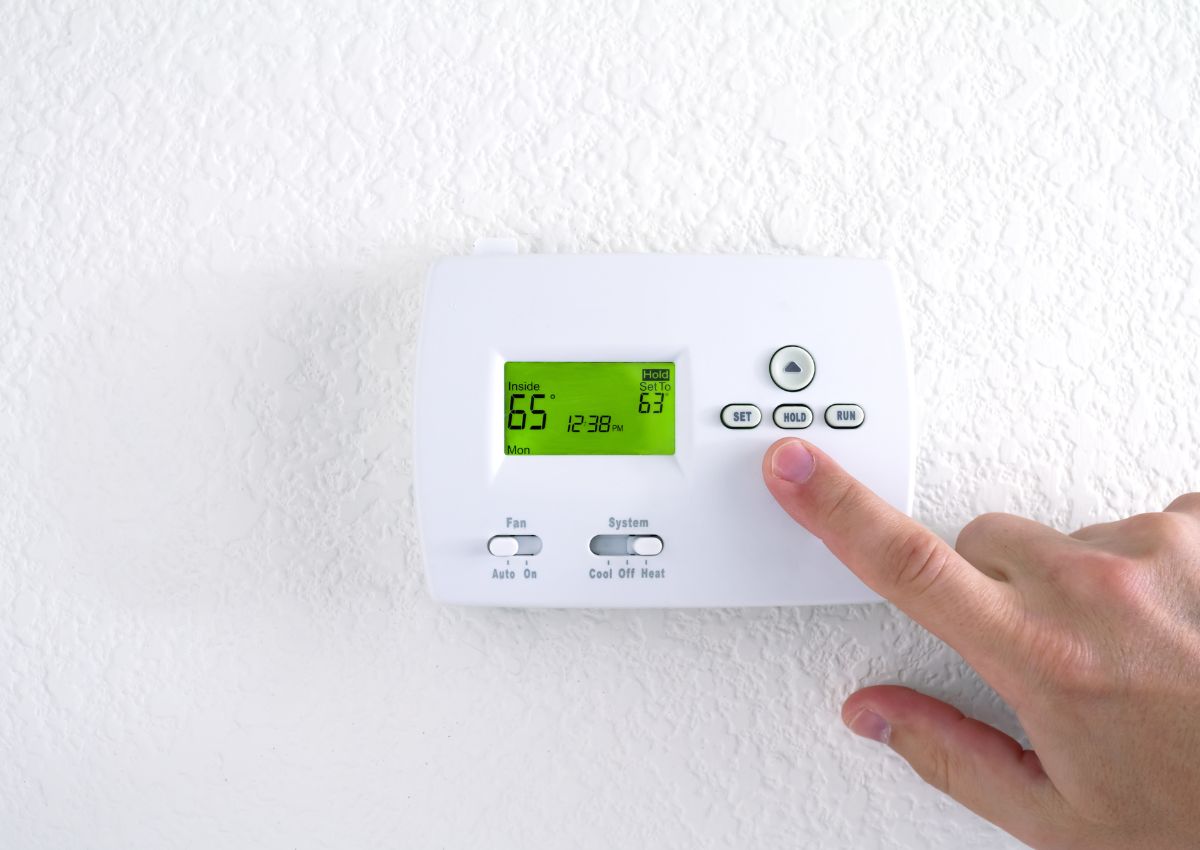
Your thermostat is the heart of your home’s heating and cooling system, and Honeywell thermostats are known for their reliability and user-friendly features. However, even the best devices can sometimes require a reset to resolve issues or restore optimal performance. Whether your Honeywell thermostat is malfunctioning, not responding as expected, or you just need to reset it after a power outage or system update, this comprehensive guide will walk you through the process.
Why Might You Need to Reset Your Honeywell Thermostat?
Before diving into the reset process, it’s essential to understand why a reset might be necessary. Here are some common reasons:
Malfunctioning Thermostat: If your thermostat isn’t displaying the correct temperature, fails to communicate with your HVAC system, or shows any other signs of malfunction, a reset might fix the issue.
Wi-Fi Connection Issues: For smart Honeywell thermostats, Wi-Fi connection problems can disrupt the device’s ability to function correctly. Resetting can help re-establish a lost connection.
System Updates: After a firmware update, a reset may be required to implement new features or restore the thermostat to its normal working condition.
Incorrect Settings: If you’ve accidentally programmed incorrect settings or want to start fresh, resetting your thermostat can wipe the existing settings, allowing you to reconfigure it.
Step-by-Step Guide to Resetting Your Honeywell Thermostat
Honeywell thermostats come in various models, each with slightly different reset procedures. Below, we’ve outlined the steps for resetting the most common Honeywell thermostat models.
1. Resetting a Honeywell T5, T5+, or T6 Thermostat
The Honeywell T5, T5+, and T6 models are among the most popular and widely used. Here’s how to reset them:
Factory Reset:
- Turn Off the Thermostat: Begin by turning off your thermostat. This can usually be done by tapping the power button or switching off the HVAC system from the breaker.
- Access the Menu: Once the thermostat is off, press and hold the center button on the device. This will bring up the main menu.
- Navigate to Reset Option: Use the arrow buttons to navigate to the “Settings” option, then select “Reset” from the list.
- Select Factory Reset: You will see a few reset options. Choose “Factory Reset” to restore your thermostat to its original factory settings.
- Confirm the Reset: Confirm the action, and your thermostat will restart. Once it’s back on, you’ll need to reconfigure your settings as needed.
2. Resetting a Honeywell 6000 Series Thermostat
The Honeywell 6000 Series thermostats are also quite common. Here’s how to reset them:
Factory Reset:
- Switch Off the Thermostat: Begin by turning off your thermostat using the power button.
- Press the Fan Button: Hold down the “Fan” button while also pressing the “Up” arrow button. Keep both buttons pressed until the screen changes.
- Press the Fan Button Again: Release the buttons, and then press the “Fan” button once more.
- Reset the Settings: Use the arrow buttons to navigate through the options. When you see “Reset” or “Factory Reset,” select it by pressing the “Up” arrow.
- Complete the Reset: The thermostat will restart, and you’ll need to reconfigure it from scratch.
3. Resetting a Honeywell 8000 Series Thermostat
The Honeywell 8000 Series thermostats are slightly more advanced, with more features. Here’s the reset process:
Factory Reset:
- Access the Menu: Turn on the thermostat, and press the “System” button to bring up the menu.
- Hold Down the Blank Button: You’ll see a blank button in the lower-right corner of the screen. Hold this button for about five seconds.
- Go to Reset Options: The system will take you to the reset options. Use the arrow buttons to navigate to “Factory Reset” and select it.
- Confirm the Reset: Follow the on-screen instructions to confirm the reset. The thermostat will restart, and you’ll need to set it up again.
4. Resetting a Honeywell Lyric Round Thermostat
For those using the Honeywell Lyric Round thermostat, the reset process is a bit different:
Factory Reset:
- Turn Off the Thermostat: Start by turning off the thermostat by pressing the power button.
- Access the Menu: Tap the menu icon on the thermostat’s touch screen.
- Hold Down the Weather Button: Press and hold the weather button for five seconds. This will bring up the reset menu.
- Select Reset Option: Navigate through the options until you find “Factory Reset.” Tap on it to select it.
- Confirm the Reset: Confirm your choice, and the thermostat will reboot. After rebooting, you can set it up again.
What to Do After Resetting Your Thermostat
After resetting your Honeywell thermostat, you’ll need to reconfigure the settings to match your home’s heating and cooling needs. Here’s a quick checklist of what you should do:
- Reconnect to Wi-Fi: If you’re using a Wi-Fi-enabled thermostat, you’ll need to reconnect it to your home network. Follow the on-screen instructions to enter your Wi-Fi details.
- Set Up Your Schedule: Most Honeywell thermostats allow you to create a heating and cooling schedule. Set up your preferred temperatures for different times of the day to optimize comfort and energy efficiency.
- Adjust Temperature Settings: Manually set the desired temperature for your home to ensure immediate comfort.
- Check System Compatibility: Make sure your thermostat is correctly communicating with your HVAC system. If you encounter any issues, refer to the thermostat’s manual or contact professional support.
- Update Firmware: Check for any available firmware updates for your thermostat model. Keeping the firmware up to date can enhance performance and security.
Troubleshooting Common Issues After Reset
Sometimes, even after resetting your thermostat, issues may persist. Here are some troubleshooting tips:
Thermostat Not Connecting to Wi-Fi: Double-check that you’re entering the correct Wi-Fi password. If the problem continues, try moving your router closer to the thermostat.
HVAC System Not Responding: Ensure that the thermostat is properly wired and that your HVAC system is powered on. If problems persist, consult with a professional technician.
Incorrect Temperature Readings: If the thermostat is still not displaying the correct temperature, try recalibrating it or check for obstructions that might affect its sensors.
Resetting your Honeywell thermostat can be a quick and effective way to resolve many common issues, from malfunctions to Wi-Fi connectivity problems. Whether you’re using a T5, T6, 6000, 8000 Series, or a Lyric Round thermostat, following these step-by-step instructions will help you restore your device to its optimal state.
At Right Now Heating and Air Conditioning, we understand that keeping your home comfortable is a top priority. If you continue to experience issues with your thermostat or need professional assistance with your HVAC system, don’t hesitate to contact us. Our team of experienced technicians is ready to help you get back to enjoying a comfortable home environment.
Remember, a well-functioning thermostat is key to maintaining energy efficiency and comfort in your home. Regular maintenance and timely resets can help you avoid bigger issues down the line. Keep your Honeywell thermostat running smoothly with these simple steps, and you’ll ensure a comfortable home all year round.